
7 Brew App, Guide
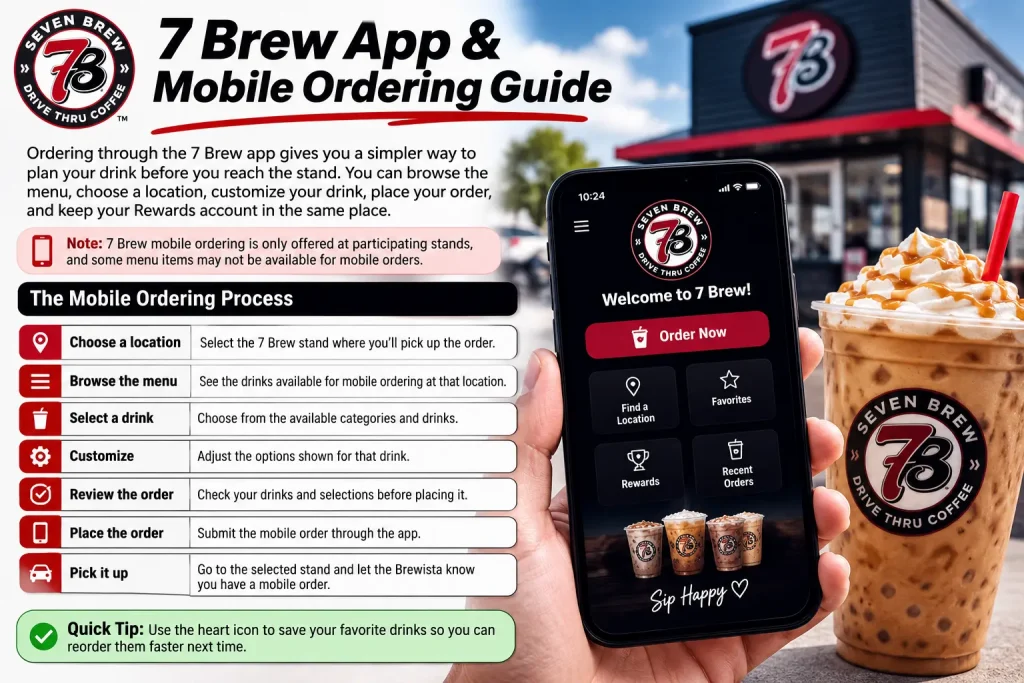
7 Brew App & Mobile Ordering Guide
Ordering through the 7 Brew app gives you a simpler way to plan your drink before you reach the stand. You can browse the menu, choose a location, customize your drink, place your order, and keep your Rewards account in the same place. It is especially useful when you already know what you want or have a regular order you don’t want to rebuild each time. The app also makes it easier to keep track of your points and saved drinks. Because some app features depend on the location and the current menu, what you see can differ from one 7 Brew stand to another.
Finding a Location and Starting an Order
Mobile ordering starts with the 7 Brew stand you plan to visit. After opening the app, select a participating location and then browse the drinks available there. 7 Brew’s mobile ordering is only offered at participating stands, and the company notes that some menu items may not be available for mobile orders. This means the app’s menu is a useful reference when you’re deciding what you can actually order from that location. Once the location is selected, you can start adding drinks to the order. The app lets you choose the drink, make the available customizations, and review the order before submitting it. Your recently ordered drinks appear near the top of the ordering menu, while drinks served with the heart icon are available under Favorites for quicker reordering.
| Part of the process | What to expect |
| Choose a location | Select the 7 Brew stand where you’ll pick up the order |
| Browse the menu | See the drinks available for mobile ordering at that location |
| Select a drink | Choose from the available categories and drinks |
| Customize | Adjust the options shown for that drink |
| Review the order | Check your drinks and selections before placing it |
| Place the order | Submit the mobile order through the app |
| Pick it up | Go to the selected stand and let the Brewista know you have a mobile order |
The location matters because the app isn’t simply a digital copy of every item sold at every 7 Brew stand. 7 Brew’s terms specifically say that mobile ordering is available only at participating locations and that not all menu items may be available through Mobile Ordering.
Building Your Mobile Order
After choosing a stand, the ordering screen is where you put the drink together. You can select the drink you want and then work through the customization options available for it. This is also where the app becomes more useful for regular customers: instead of explaining the same drink at the drive-thru every time, you can save it to Favorites and bring it back up later.
For a new order, it makes sense to choose the drink first and then review its available options. Not every drink has the same customization choices, so the options shown in the app are specific to what you’re ordering. If you already have a regular order, check Recent or Favorites before building it from scratch. 7 Brew says recently ordered drinks appear at the top of the ordering menu, and saved favorites can be accessed through the Favorites tab. One limitation is worth knowing before placing a large order: mobile orders can only be placed one at a time. Once the current order has been completed, you can place another one.
Customizing Drinks in the App
The app gives you the same basic flexibility people expect when ordering at a 7 Brew stand, but the available choices are shown directly on the drink you’re building. Depending on the drink, you can change the flavor, sweetness, milk, toppings, drizzles, or other available options. 7 Brew’s current menu also lists choices such as extra espresso, sugar-free flavors, alternative milks, cream, whipped cream, cold foam, and different sweetness levels. The useful part is that you can see the selections before placing the order. If you normally order a drink with several changes, this can make the process more consistent because your preferences are attached to the order rather than having to remember every modification at the drive-thru.
| Customization | Examples shown by 7 Brew |
| Extra espresso | Add an extra shot where available |
| Flavor | Choose from available flavor options |
| Sugar-free flavor | Select a sugar-free flavor where offered |
| Sweetness | 1/4, 1/2, regular, or extra |
| Milk | Oat, coconut, or almond alternatives |
| Toppings | Cream, whipped cream, or cold foam |
| Drizzle | White chocolate, dark chocolate, or caramel |
Not every option appears on every drink. A coffee-based drink may have different choices from an Energy drink, smoothie, or Fizz, so it is better to work from the options displayed for that specific drink rather than assume every customization is available everywhere.
Saving a Regular Order
If you have a drink you order often, saving it can save a few steps the next time. 7 Brew places recently ordered drinks near the top of the ordering menu, and you can tap the heart icon to add a drink to your Favorites. That makes it easier to find the same combination without rebuilding it each time. This is particularly useful for drinks with several modifications. Instead of remembering the flavor, sweetness level, milk choice, and toppings separately, you can return to the saved drink and use that order as your starting point.
Picking Up a Mobile Order
Once the order is placed, the final step happens at the selected 7 Brew stand. Mobile ordering is designed for pickup rather than delivery. When you arrive at the drive-thru, tell the Brewista that you placed a mobile order. The order is then checked in and prepared for you.
Payment is also handled at the stand. 7 Brew says payment for mobile orders is completed at the drive-thru when Brewista checks you in, rather than being charged when you submit the order in the app. Mobile orders can be placed during your local stand’s operating hours, and they need to be picked up the same day. 7 Brew says mobile orders are removed at the end of each day, so an order shouldn’t be placed with the intention of collecting it on another day. If you selected the wrong location or need to change the drinks after placing the order, 7 Brew’s current support information says you can cancel the order and place a new one. Mobile orders also need to be completed before another mobile order can be placed.
Using 7 Brew Rewards With Mobile Ordering
The app and 7 Brew Rewards are closely connected, so mobile ordering is also a convenient way to keep track of points while you order. A Rewards account is required for mobile orders, and your existing Rewards balance carries over when you start using the app. You can also use your Rewards account without the app, so downloading it isn’t necessary just to earn or redeem points. The current program awards 100 points for each qualifying drink. Once you reach 1,000 points, you can choose an available reward rather than having a free drink automatically applied. Saving more points can unlock additional reward options, including 7 Brew merchandise.
| Rewards feature | Current system |
| Joining | Sign up with your phone number |
| Points earned | 100 points per qualifying drink |
| 1,000 points | Free drink reward available |
| Higher balances | Additional reward options can unlock |
| Existing points | Transfer to the app |
| Existing free drinks | Remain available |
| Redeeming | Use the Rewards section in the app or Rewards website |
| Expiration | Points and free drinks expire after 365 days without a purchase using the Rewards account |
One change is particularly important for people who order different types of drinks. As of August 12, 2026, 7 Brew Energy cans and kids-sized drinks no longer earn Rewards points. Qualifying small, medium, and large drinks continue to earn points.
Keeping Track of Rewards
Your points balance and available rewards can be viewed from the Rewards section in the app. You don’t have to wait until you reach exactly 1,000 points before checking the account. If you’re saving toward a larger reward, the app lets you see what options are available as your balance grows. There is also no need to worry about older points disappearing simply because you move to the app. 7 Brew says existing points automatically transfer, along with free drinks that were already saved to the account.
Mobile Orders and Promotions
The app can become especially useful when 7 Brew runs a promotion that requires mobile ordering. Sip Your Way to 100K, for example, used qualifying mobile orders as the entry method during its August 20–26, 2026 promotion. Each qualifying order earned an additional 100 bonus points and one entry into the drawing. The important point is that promotional rules can differ from the normal Rewards program. A promotion may have its own dates, qualifying items, entry limits, or pickup requirements, so don’t assume that every mobile order automatically qualifies for every offer. The app is also where 7 Brew can make mobile offers available to Rewards members. Those offers may have their own conditions and participating-location restrictions.
Final Thoughts
The 7 Brew app is most useful when you want to have your order organized before reaching the drive-thru. You can find a participating location, build a drink, make your customizations, save regular orders, and keep your Rewards account in the same place. For people who order the same drink regularly, the Recent and Favorites features can also cut down on the time spent rebuilding an order. The main things to remember are simple: check the location, review the drink before submitting the order, pick it up the same day, and remember that payment happens when the Brewista checks you in. If something needs to be changed after the order is submitted, cancelling it and placing a new order is the current process.